

Fully Printed Cover
Fully printed covers allow you to create a full bleed, full colour printed design which is then finished off with one of our laminates to strengthen the cover, lock in colours and give it an overall premium feel.
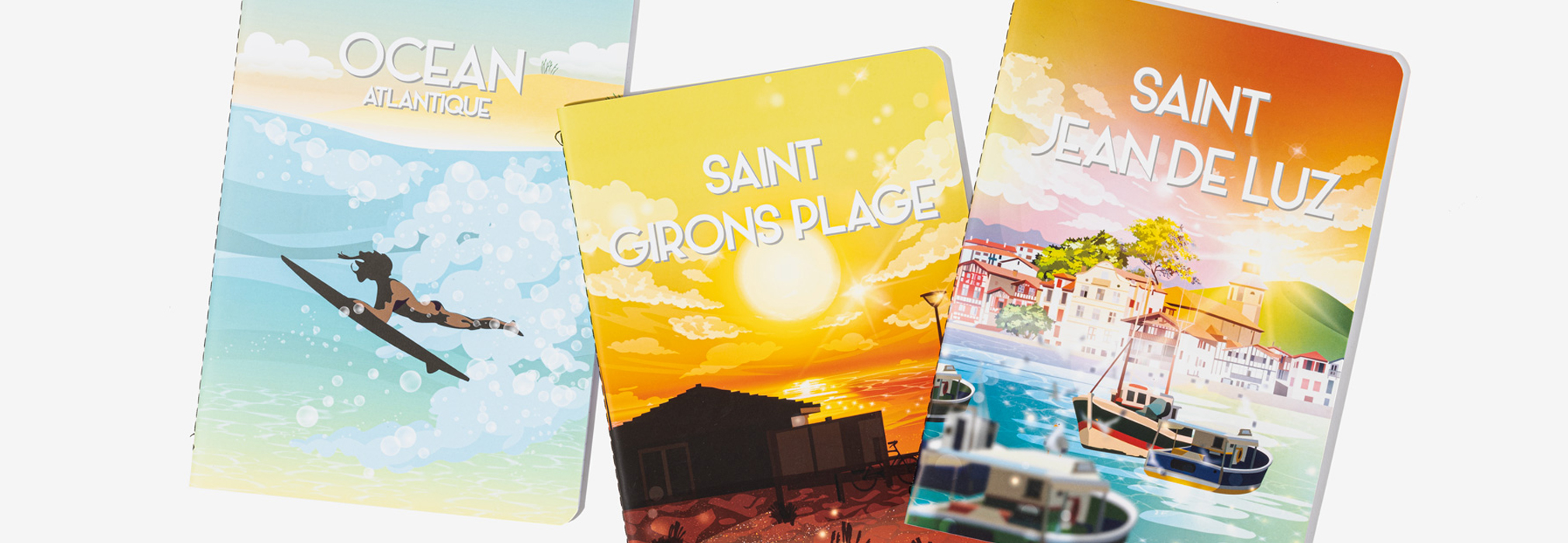
For fully printed covers we use blank white stock paper and print full colour designs over it, allowing the colours of the design to achieve full vibrancy. Fully printed covers are great for busy patterns, photography and gradient designs.
Fully printed covers also include our card cahier notebooks which can be either laminated or left uncoated.
Do’s:
- Be creative and make the spine design more fun to minimise crease marks
- Ask about our laminate finishes to achieve the best finish for your design
- Consider printing on fabric and faux leathers for more interesting textures
- UV spot varnish or foil your notebook to elevate parts of your design
Dont’s:
- Don’t print solid full bleed colours – scuff marks and folds of the laminate can show more prominently on single colour prints. By using patterns and more intricate designs you will be able to mask the wear and tear for a more lasting finish.
- We don’t recommend debossing onto printed covers as the outcome of the debossing will be affected by the laminate.
Setting up artwork for full cover printing
For full cover printing, artwork can include a full-colour range and requires print-ready PDFs, prepared with 300 dpi resolution and CMYK colour profiles. Ensure that your logos and text are in vector format to maintain clarity at all sizes.
- Your logo or design should be in vector format.
- Ensure all text is ‘outlined’ to make it vector format
- PDF should be exported to CMYK Colour
- PDF Should be exported with all marks and bleeds
- Name and organise your layers correctly within the template
Populating our templates
Populating our templates is very straight forward, simply open the template file with Adobe Illustrator and populate it with your designs. The template we will provide you with is ready to print and inclusive of the necessary bleed marks. Just ensure that all of the design elements you add into the template meet our requirements.
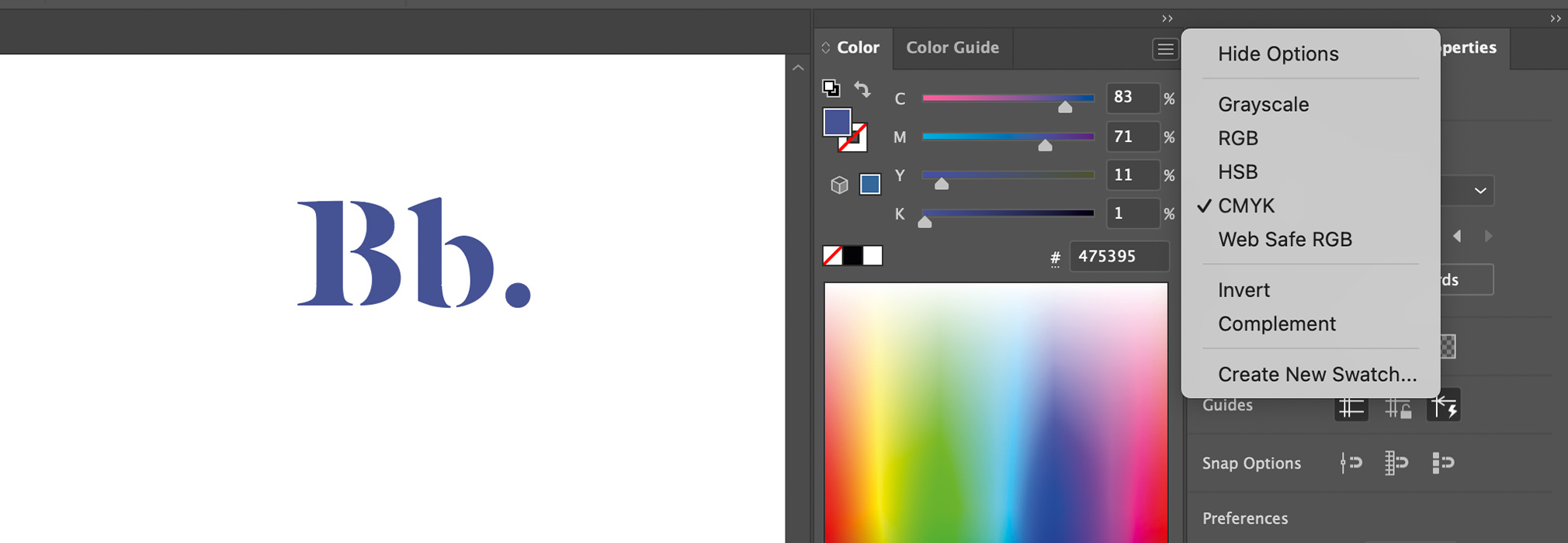
We require artwork to be provided in CMYK (Cyan, Magenta, Yellow, and Key/Black) for accurate colour reproduction during the printing process. Using the correct colour profile ensures that your designs come out exactly as expected, avoiding any unwanted shifts in colour. Illustrator allows you to embed CMYK and pantone colours directly into the file. You can do this following the steps below:
File > Colour Mode > Select the CMYK profile.
You can then see in the colour view that all the solid colours you’re inputting are set to CMYK.
Vectorising Text Layers
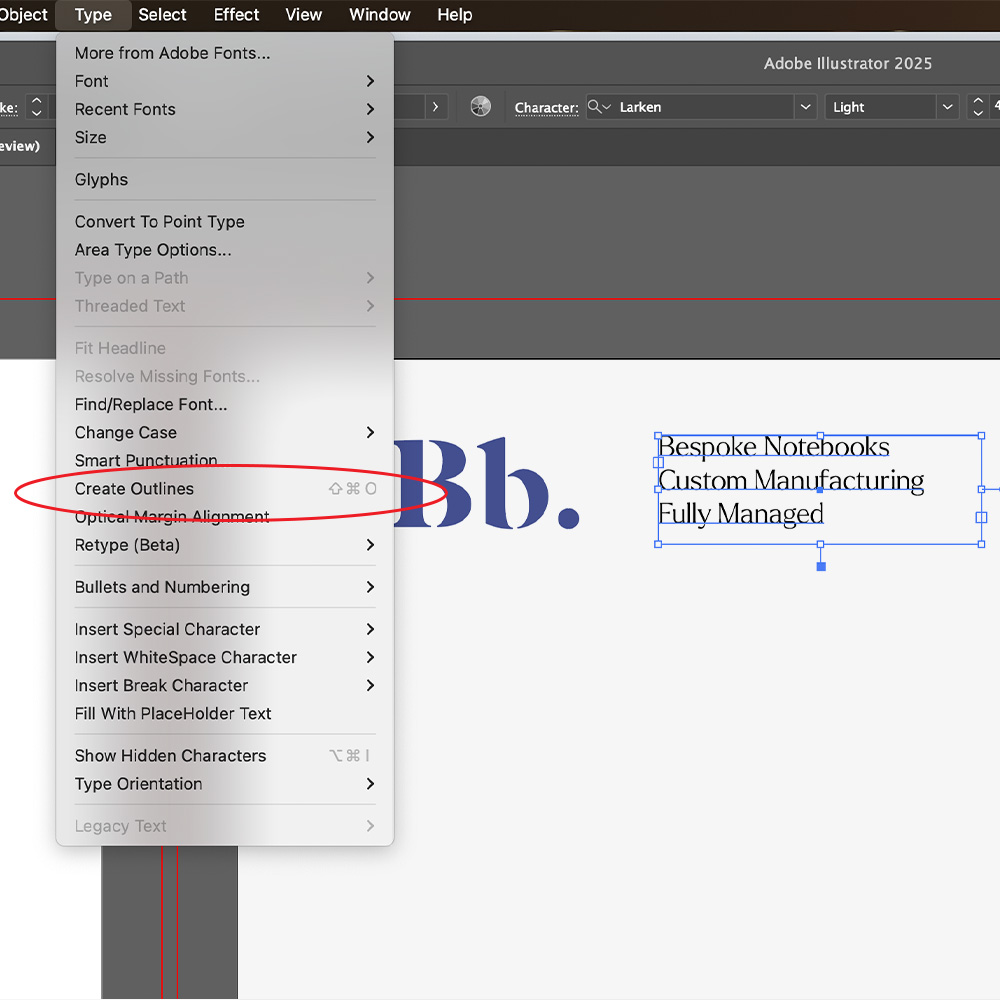
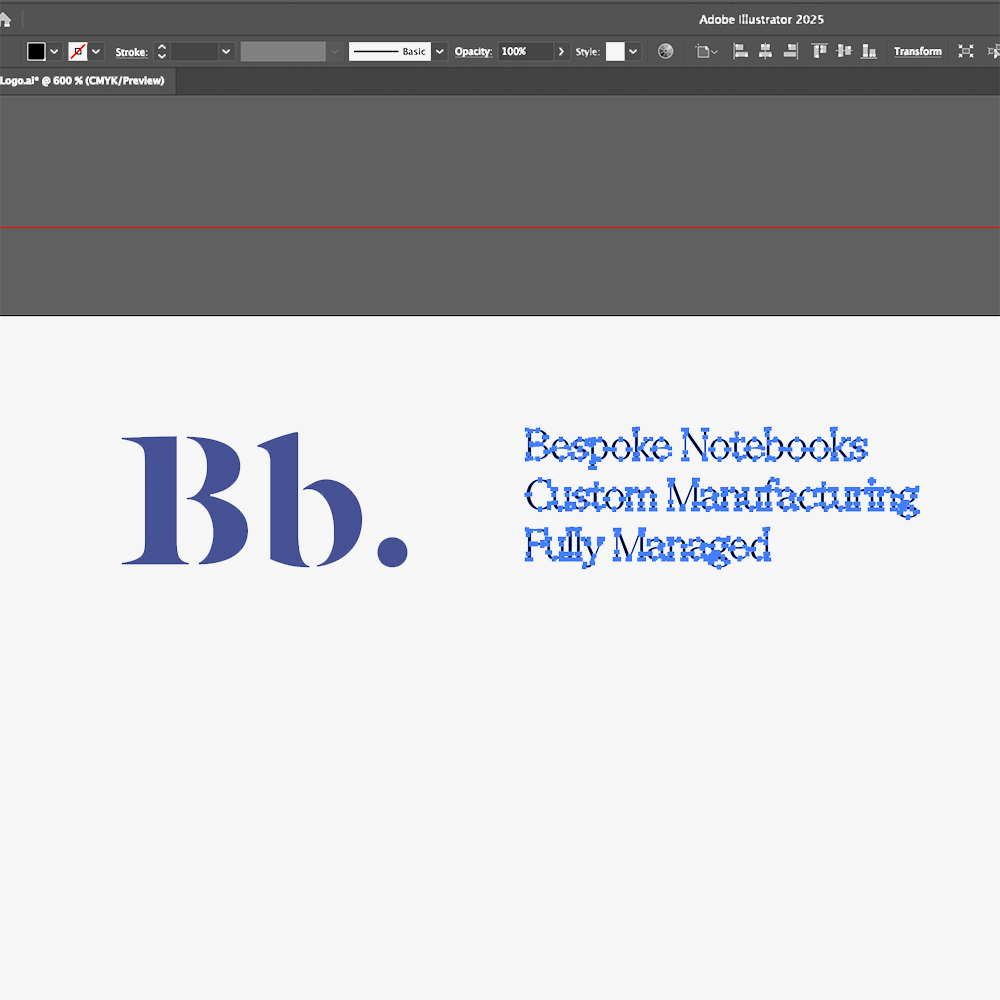
Outline your text, this ensures that there are no missing fonts or changes in typography styles when files are supplied for print.
How to: Select the text you want to outline, go to the menu and select Type > Create Outlines (or press Shift + Ctrl + O on Windows / Shift + Command + O on Mac).
Adding Images / Photos To Your Artwork
Artwork Images should be exported to CMYK, 300 dpi and then embedded within your files. You can use photoshop to export your image files to the correct colour profile and resolution following these steps:
Open Photoshop > New Document > Then choose a preset or enter the document size and remaining details. Just ensure that your resolution is 300 dpi and colour mode is set to CMYK.
To embed a file in Illustrator, simply click on the image you’ve added, then click on the image you want to embed, go to the properties panel to the right and select the ‘Embed’ button.
Your artwork should then be ready to be saved as a PDF, this can be done by clicking:
File > Save > Click dropdown > Adobe PDF.
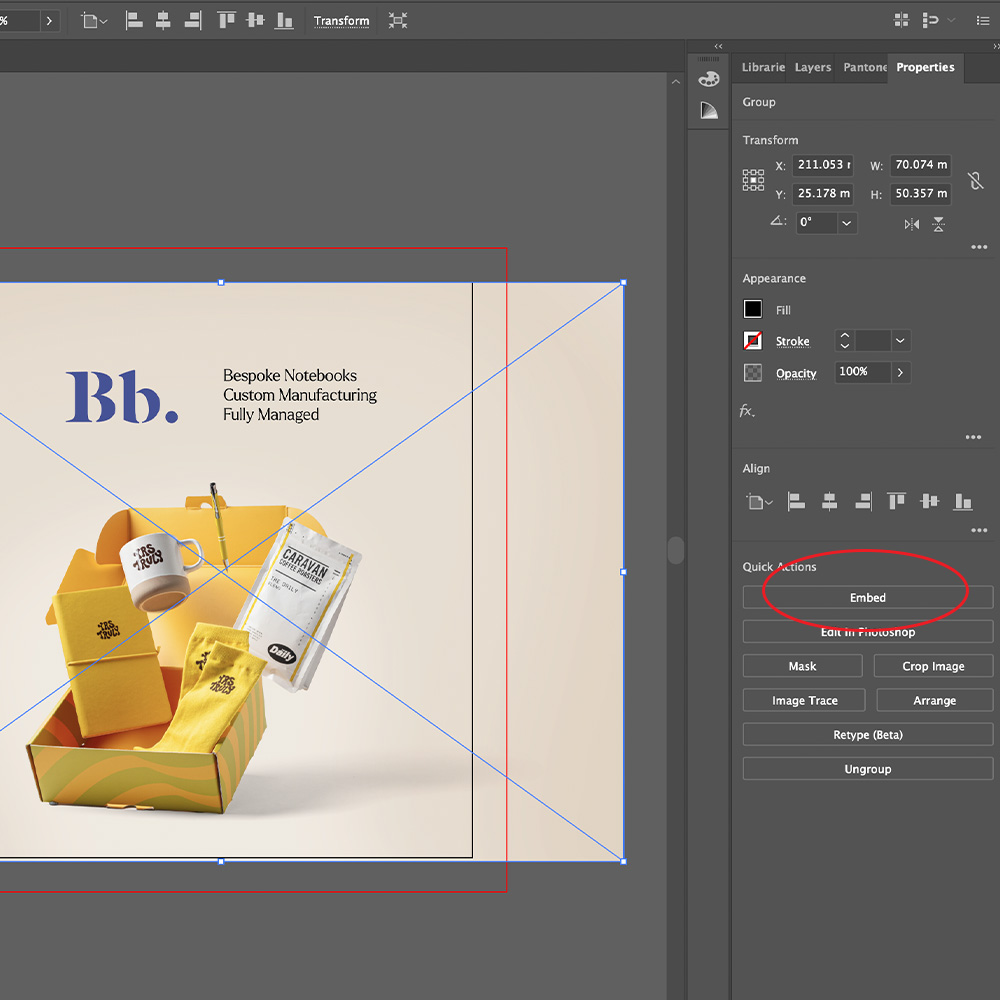
Select your image and click the ’embed’ button in the properties panel
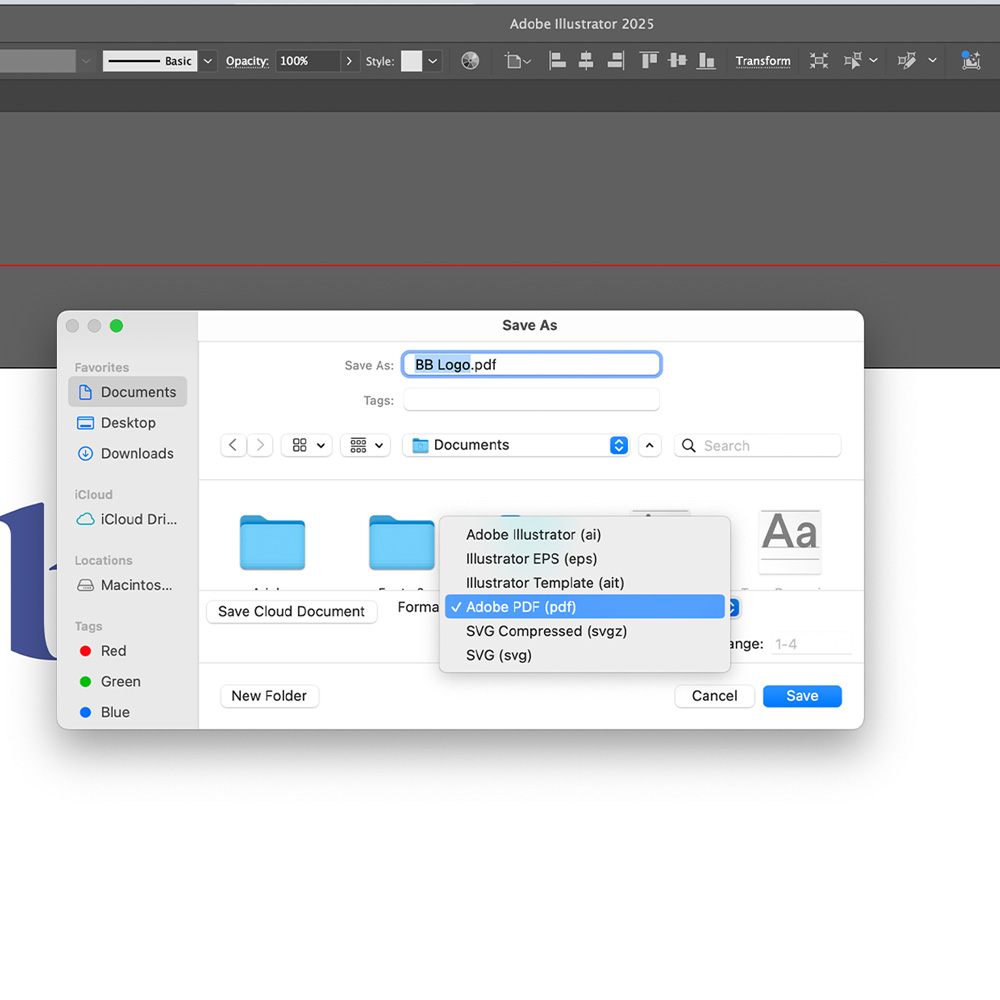
Export PDF: File > Save > Click dropdown > Adobe PDF.